English Version:
Hello everyone, long time since my last post, I apologize, the last few months I was very busy but I'm here again to write.
Today I want to tell you about Linux Mint, another operating system Free and Open Source. I have been using Ubuntu for years on my computer, some months ago I wanted to try something different and but not so different to my loved Ubuntu, especially after version 15.04 that it did not convince me.
I heard about Linux Mint some years ago, so I decided to install it and tell you my experience.
Linux Mint is based on Ubuntu so it was ideal to leave it by a similar alternative and Open Source with the slogan that it has a modern and elegant interface.
Mint has 4 editions, the same are:
- MATE Edition (uses a MATE desktop)
- Cinnamon Edition (uses a Cinnamon desktop)
- KDE Edition (uses a KDE desktop)
- Xfce Edition (uses an Xfce desktop)
You can choose whatever you like, something I found interesting it is that we have an ISO with the codecs already installed on the operating system that will save you time in customizing your system or if you do not want to violate any law you can download any without the codecs especially if we are in a country with strong patent laws such as Japan and USA. You can download the version 17.2 Rafaela
here.
Installation is really simple and fast, almost equal to Ubuntu installation.
Once the installation is complete, I checked the system a bit and I kept thinking few minutes "what do I need to do now?, Mint had already installed all the codecs and some commonly used applications that are not included in Ubuntu as VLC, Gimp and others so installed some applications I use and started testing, I found it amazing for beginners users looking for something like Windows in use and does not hinder their lives with complex installations.
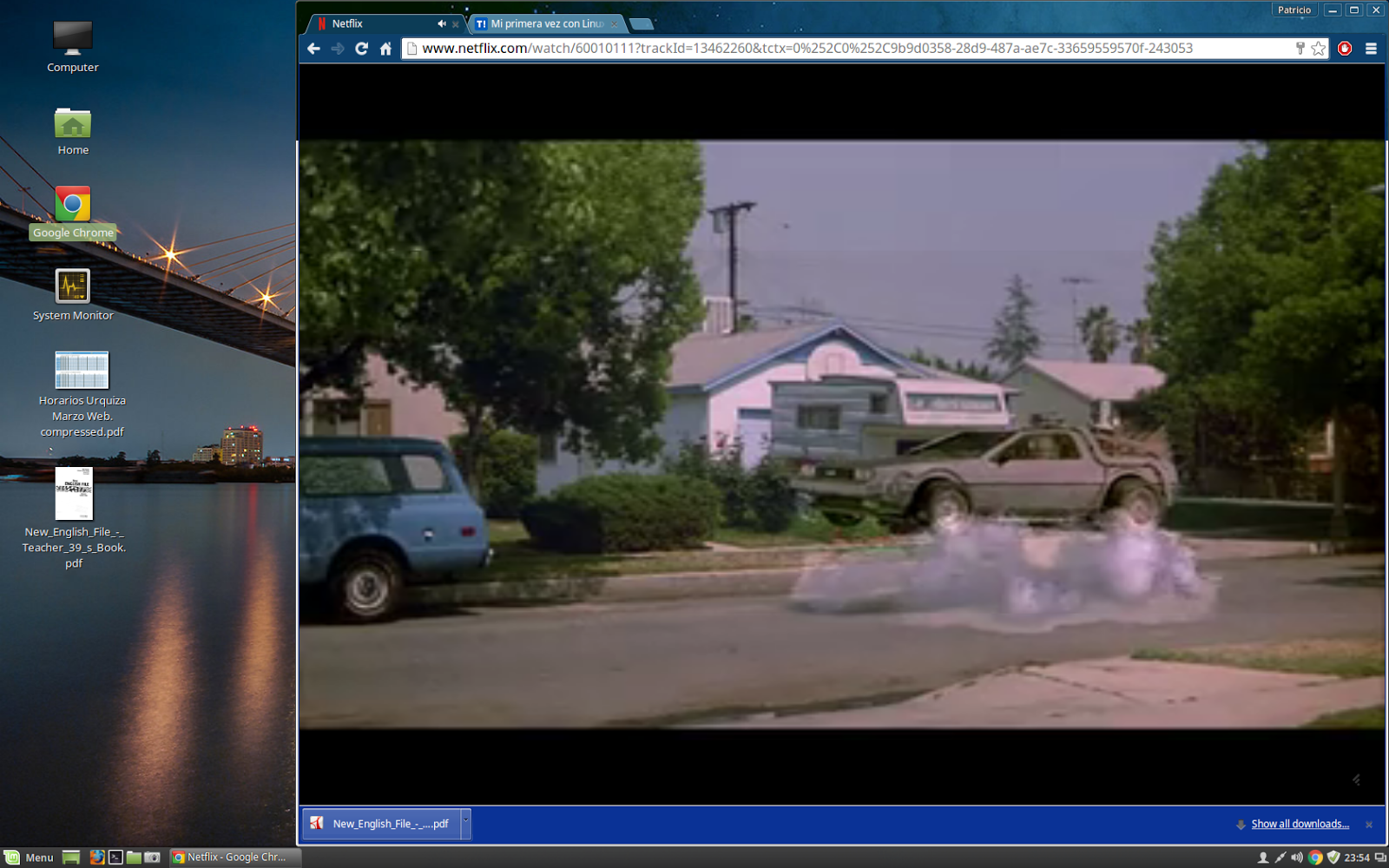
The first thing that surprised me is the clarity and cleanliness desktop with its wallpapers, the colours of the task bar, the Mint start button and the icons of some standard applications like Firefox, the shell and the file explorer.
The presentation of the start menu I loved it too, its icons and buttons, I was tired of the rare and sometimes complicated Unity interface and I was looking back to the old idea of the classic start menu without having to modify the system as in Ubuntu.
The system performance is very good and stable, I don't know if it was my impression but I noticed a minimal drop of performance when I was playing movies or watching videos on youtube comparing with Ubuntu, something almost imperceptible.
The way to customize the system to place your favourite applications in the task bar, the Start menu or the desktop itself is a wise idea, especially for no expert users and very familiar with Windows, something that in other distros this is not so simple to do.
The File Browser is similar to other distros only with Mint colours presentation.
The big advantage for those who are familiar with Ubuntu, is that installing applications remains equal with the APT command mainly, the software repository is the same as application compatibility that you can install outside the software repository, things that greatly facilitate the platform migration.
Conclusion:
For those skilled Linux users, Mint is not for you, you will get bored quickly and especially if you do not have interest in the visual of the operating system.
Linux Mint is a powerful and interesting alternative to leave Windows for beginners or advanced users, a modern distro, soft and friendly, something I personally thought was pending on the Linux's world and for this reason the Users are not yet decided to leave Windows definitely. After installing Linux Mint is just starting to use it without difficulty.
I am convinced that Linux Mint deserves a chance to be tested, if Mint follows this road and achieves greater maturity I think it could be a possible replacement for Ubuntu if the things do not improve after version 15. As definite strong point is free of cost and open source with all that that means.
I hope you are well. We reading!!!
System requirements:
512MB RAM (1GB recommended for a comfortable usage).
9GB of disk space (20GB recommended).
Graphics card capable of 800×600 resolution (1024×768 recommended).
DVD drive or USB port.
Notes:
The 64-bit ISO can boot with BIOS or UEFI.
The 32-bit ISO can only boot with BIOS.
The 64-bit ISO is recommend for all modern computers (Almost all computers sold in the last 10 years are equipped with 64-bit processors
Spanish Version:
Hola a todos, hacía tiempo que no escribía, les pido disculpas, los últimos meses estuve muy ocupado pero acá estoy de nuevo para escribir.
Hoy quiero contarles sobre Linux Mint, otro sistema operativo Free y Open Source. Desde hace un tiempo que vengo utilizando Ubuntu en mi computadora, hace algunos meses atrás tenía ganas de probar algo distinto y pero no muy diferente a mi querido Ubuntu, sobretodo luego de la versión 15.04 que no me convenció. Ya había sentido nombrar Linux Mint hace algunos años atrás, así que decidí instalarlo y les cuento mi experiencia.
Linux Mint esta basado en Ubuntu así que era ideal para dejarlo por otra alternativa Open Source parecida y con el slogan que posee una interfaz moderna y elegante.
Mint tiene 4 ediciones, la mismas son:
- MATE Edition (Escritorio MATE)
- Cinnamon Edition (Escritorio Cinnamon)
- KDE Edition (Escritorio KDE)
- Xfce Edition (Escritorio Xfce)
Podes elegir la que más te guste, algo que me pareció interesante es que tenemos una ISO con los codecs ya instalados en el sistema operativo que te va a ahorrar tiempo en personalizar tu sistema o si no queremos violar ninguna ley podemos bajar otra sin los Codecs, especialmente si estamos en un país con leyes de patentes fuertes como Japón o USA. Pueden descargar la versión 17.2 Rafaela
acá.
La instalación es realmente sencilla y rápida, prácticamente igual a la instalación de Ubuntu.
Una vez que se completo la instalación, revise un poco el sistema y me quede pensando unos minutos ¿que me falta hacer ahora?, Mint ya había instalado todos los Codecs y trae algunas aplicaciones de uso común que no están incluidas en Ubuntu como VLC, Gimp y otras, así que no tenía demasiado para hacer más que instalar algunas aplicaciones que utilizo y comenzar a probarlo, me pareció increíble para usuarios begginers que buscan algo parecido a Windows en uso y no les dificulte la vida con instalaciones complejas.
Lo primero que me impacto es la claridad y limpieza del escritorio con sus wallpapers, los colores de la barra de tareas, el botón inicio de Mint y los iconos de algunas aplicaciones standard como Firefox, la terminal y el explorar de archivos.
La presentación del menú inicio me gusto mucho también, sus iconos y botones, estaba cansado de la interfaz rara y a veces complicada de Unity y buscaba volver a la vieja idea del menú inicio clásico sin tener que estar modificando el sistema como en Ubuntu. Hasta la presentación del shell me parecieron elegantes con poco.
La performance del sistema es muy buena y estable, no se si fue mi percepción pero note una mínima caída de perfomance al reproducir películas o ver vídeos en youtube comparando con Ubuntu, algo igualmente imperceptible.
La forma de customizar el sistema para colocar las aplicaciones favoritas en la barra de tareas, en el menú inicio o en el mismo escritorio me parecieron una idea acertada, en especial para usuarios pocos expertos y muy familiarizados con Windows, algo que en otras distros no siempre es tan sencillo de realizar.
El explorador de archivos es muy parecido a otras distros solo que con la presentación de colores de Mint.
La gran ventaja para los que estamos familiarizados con Ubuntu, es que la instalación de aplicaciones sigue siendo la misma con el comando APT a la cabeza, el repositorio de software es el mismo como la compatibilidad de aplicaciones que podes instalar fuera del repositorio lo que nos facilita mucho el cambio de plataforma.
Conclusión:
Para aquellos Linuxeros expertos, Mint no es para ustedes, se van a aburrir rápidamente y sobretodo si no tienen interés en la parte estética del sistema operativo.
Linux Mint es una potente e interesante alternativa para dejar Windows para los usuarios begginers o no avanzados, una distro que apunta a la estética moderna, suave y amigable para ellos, algo que personalmente creía que faltaba en el mundo Linux y que por ese motivo los usuarios todavía no se decidían por dejar Windows definitivamente. En Linux luego de instalarlo es solo comenzar a utilizarlo sin dificultad alguna.
Desde mi punto de vista estoy convencido que Linux Mint merece una oportunidad de ser probado, si con el tiempo sigue por este camino y alcanzando mayor madurez creo que podría ser un posible reemplazo a Ubuntu si no mejoran las cosas luego de la versión 15. Como punto fuerte definitivo es libre de costo y Open Source con todo lo que eso significa.
Espero estén bien. Nos Leemos!!!
Requisitos del sistema:
512MB RAM (1GB recomendado para un uso fluido).
9GB de espacio en disco (20GB Recomendado).
Tarjeta gráfica con resolución 800×600 (1024×768 Recomendado).
DVD o puerto USB.
Notas:
La ISO de 64-bit puede butear con BIOS o UEFI.
La ISO de 32-bit puede bootear solo con BIOS.
La ISO de 64-bit es recomendada para cualquier computadora moderna.